Pro feature · v1.8.0+
Use your phone as a wireless mic.
Pair your iPhone or Android with Tap2Talk Pro over your practice Wi-Fi. Dictate from anywhere in the operatory — chairside, sitting, gloved. The cleaned clinical note pastes onto your desktop automatically.
Audio never leaves your LAN. No cloud round-trip, no third-party server.
How to set it up
-
Step 1
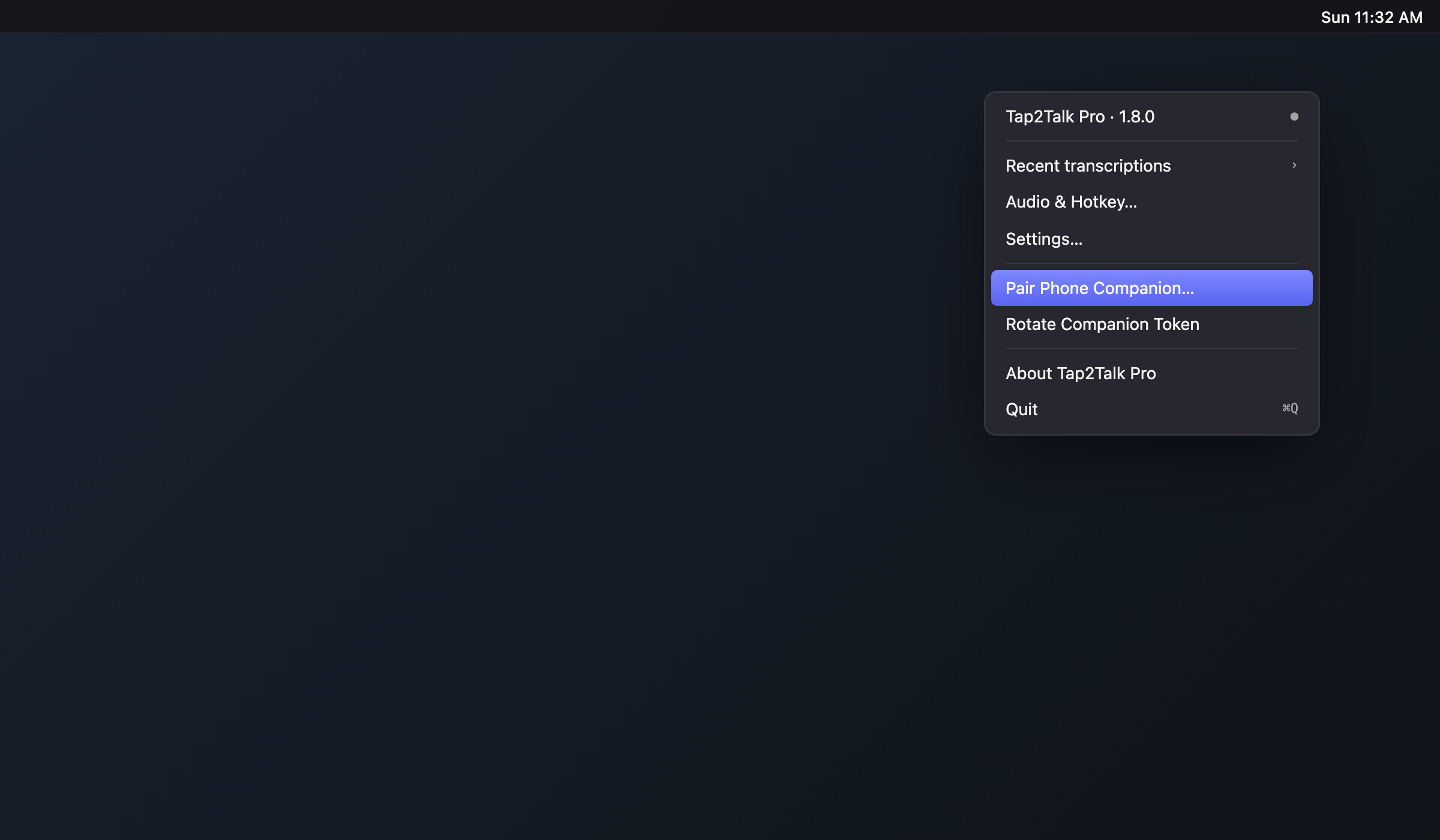
Open the tray menu
Click the Tap2Talk Pro icon in your menu bar (Mac) or system tray (Windows) and choose "Pair Phone Companion…".
-
Step 2
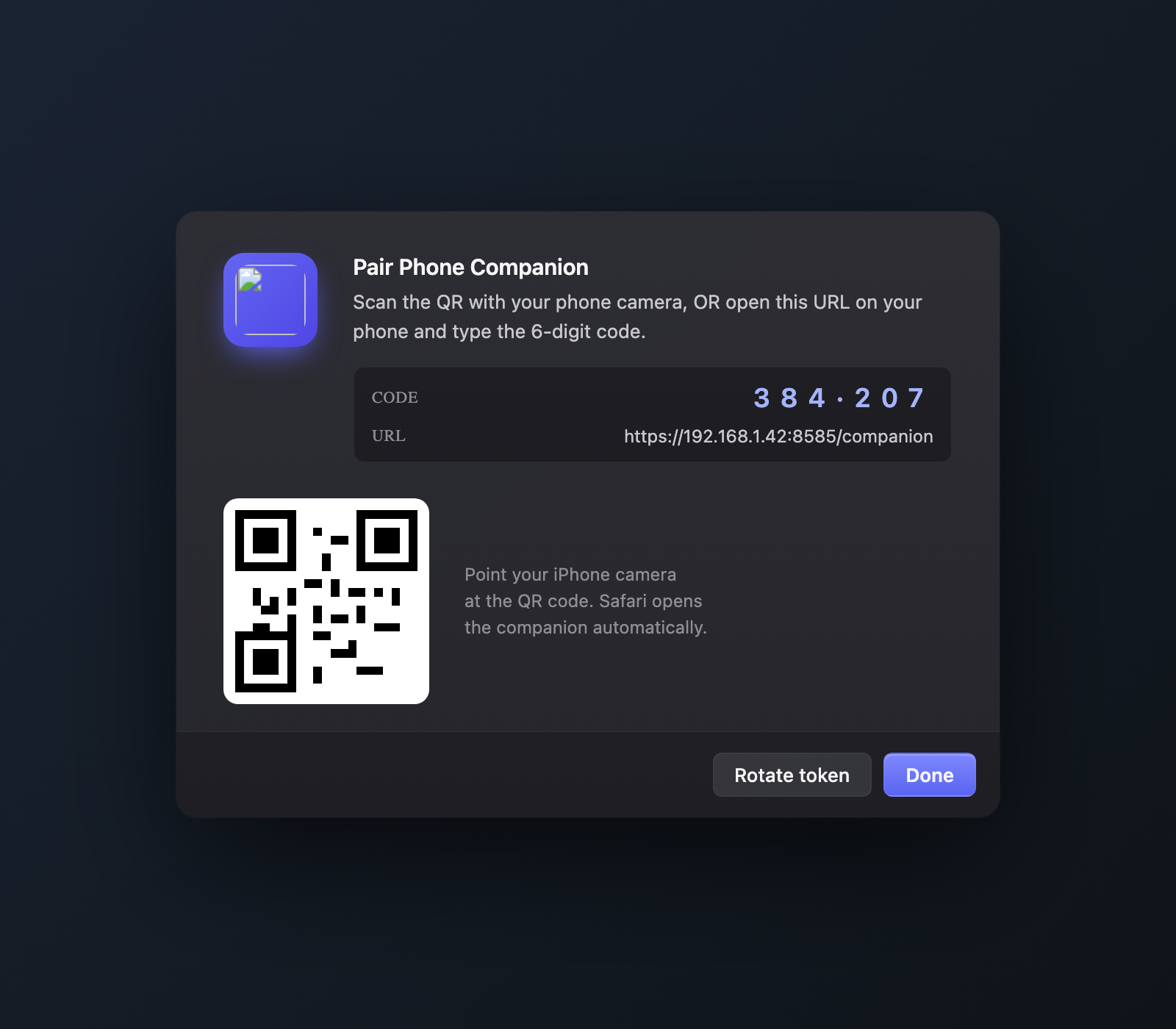
Scan the QR with your phone
Open your phone camera and point it at the QR. Safari or Chrome opens the companion automatically. (No QR? Type the 6-digit code in the phone's Pair screen.)
-
Step 3
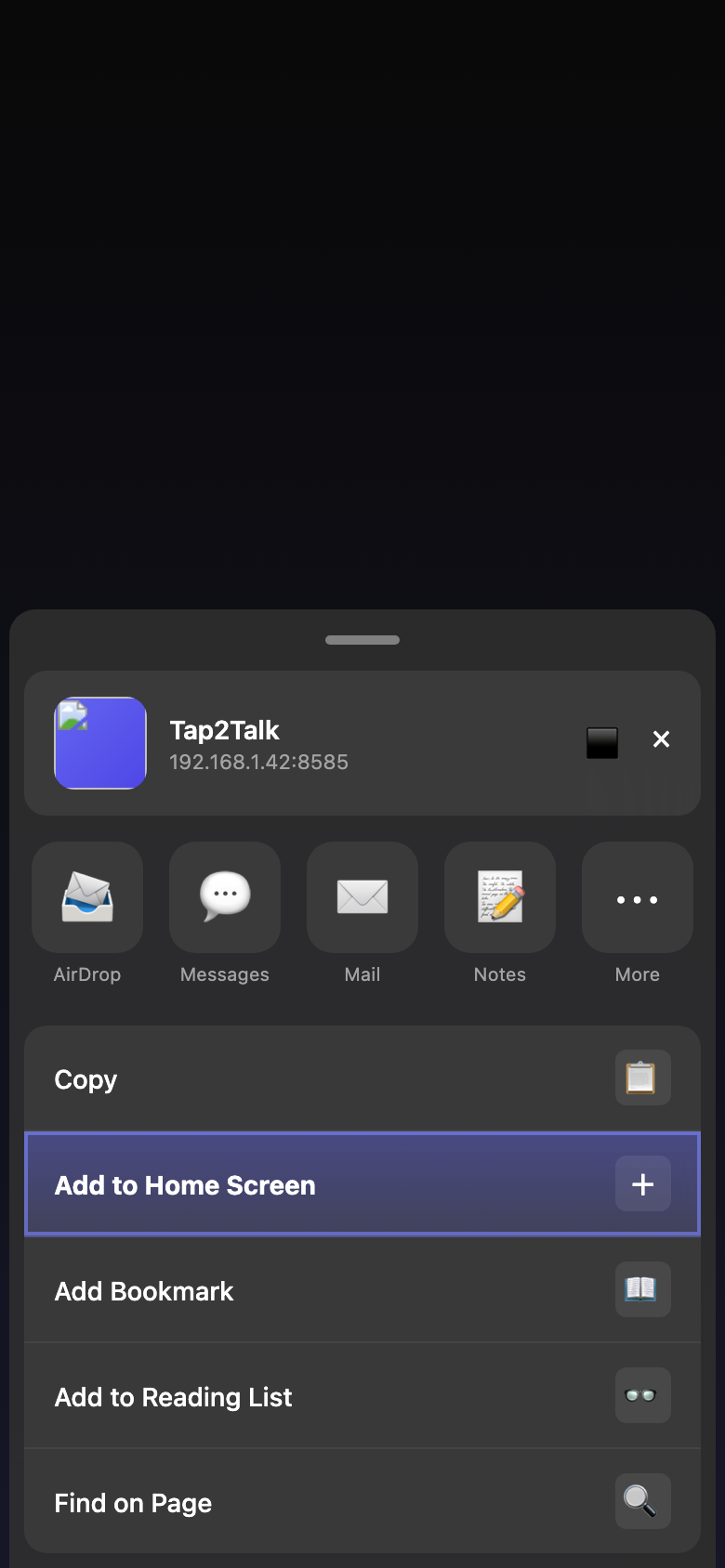
Add to Home Screen
On iPhone, tap the Share icon then "Add to Home Screen". The Tap2Talk icon appears like a real app. On Android, tap the install banner.
-
Step 4
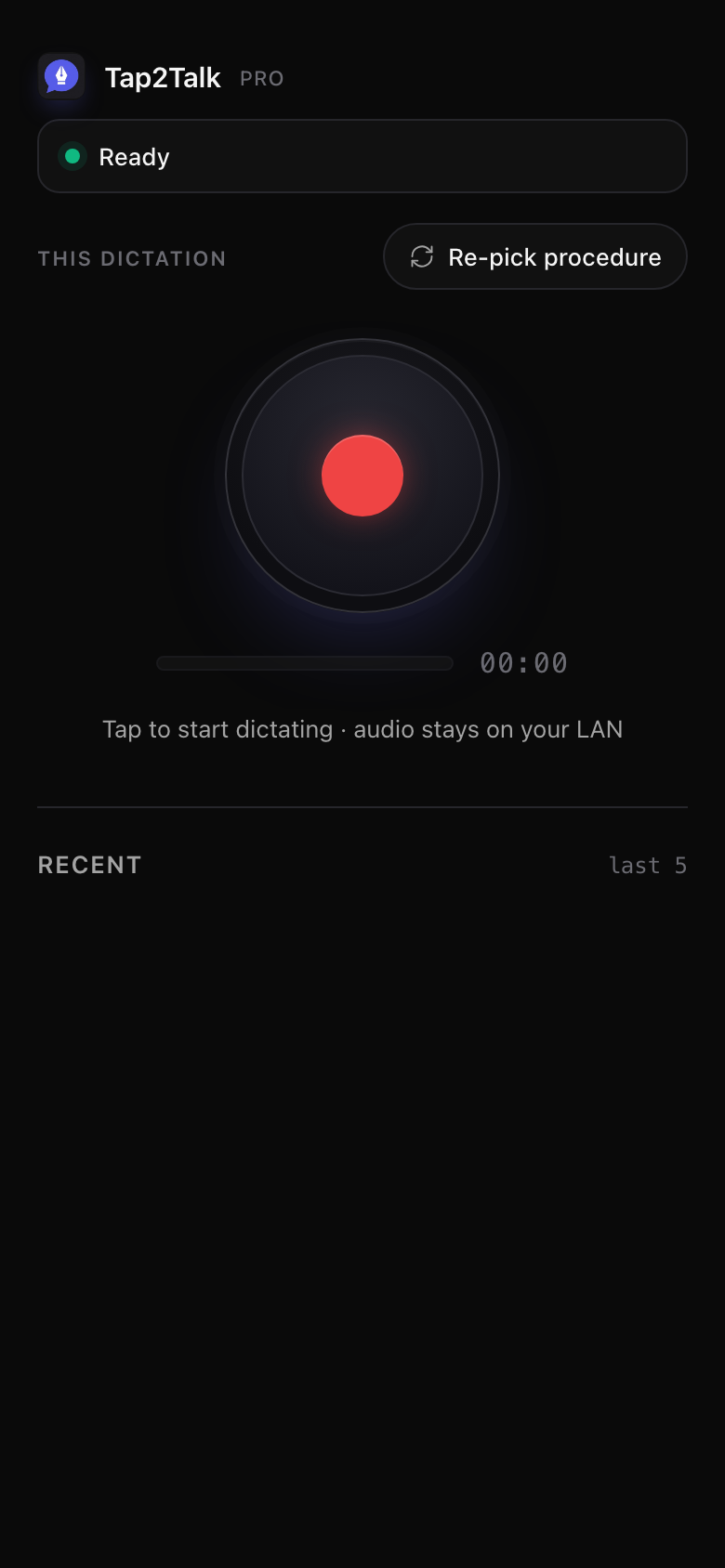
Tap the big red button to dictate
That's it. Audio streams to your desktop, gets transcribed locally with Whisper, redacted with GLiNER, cleaned by your BYOK LLM, and the result lands back on the phone — and pastes onto your desktop with one tap.
-
Optional
Procedure-aware checklists
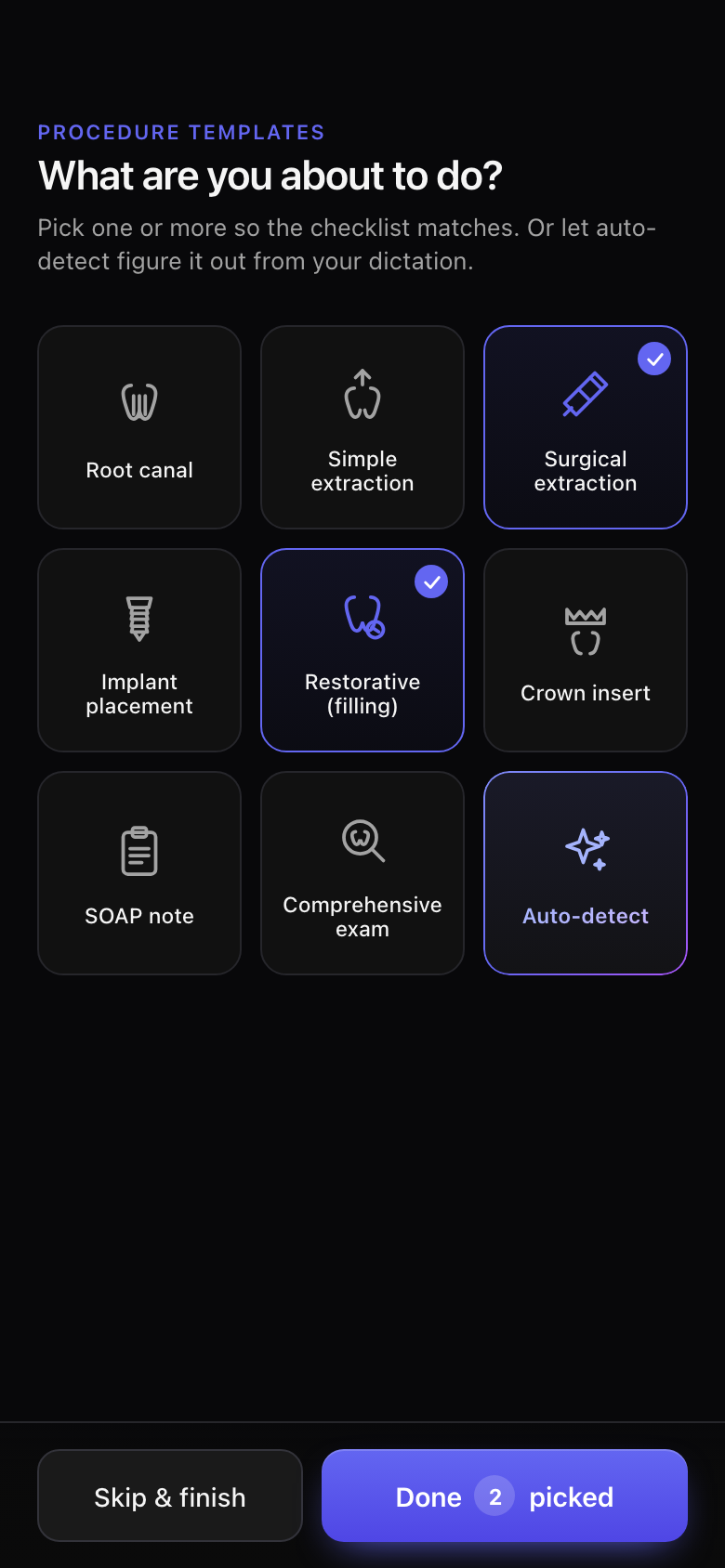
Tap "Re-pick procedure" before recording to pick one or more templates (root canal, surgical extraction, restorative…). The phone shows a live checklist of expected fields you can dismiss as you cover them. The cleanup uses these to produce a structured note.
Privacy
The phone connects to a tiny HTTPS server running on your desktop, on your local Wi-Fi. The pairing token is one-shot and the connection is rejected from any IP outside the LAN range. Audio chunks stream directly from your phone to your desktop and never reach Tap2Talk's infrastructure or any cloud transcription service.
If you've configured a BYOK LLM (OpenAI, Anthropic, Groq) for cleanup, only the redacted transcript is sent to that provider — never the audio.